
 In a previous tip I showed you how to create numbers with leading zeros by typing either an apostrophe in front of the leading zero or a space somewhere in the number. But what if you require the number to have a leading zero but you forget to type it as you have used spreadsheets for so long that your head just doesn’t let you type a leading zero. Well, I have the answer for you. Use a custom format.
So what does it look like in Excel
Here is an example of a number that leads with a zero that you need in your spreadsheet.
020 7730 1234 is a telephone number for a London store (Harrods). In Excel we tend not to use spaces for ease of typing.
Here is what it looks like as I type it into the first cell.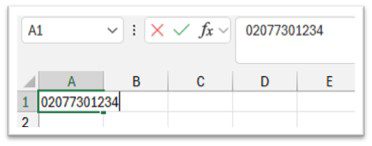
When I press the [Enter Key] to finish off the data in that cell this is the result.

This is NOT what I required. Therefore I need to do something to get the right number in the spreadsheet with it’s leading zero. So how do I get it to look like this? 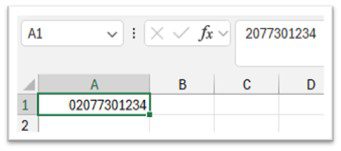
Creating a custom format for that cell, and probably others, is just one way.
Create your custom format
- Select a cell.
- Right-click in that cell and select [Format cells…]

- Select [Custom] at the bottom of the list.
This dialog box appears. 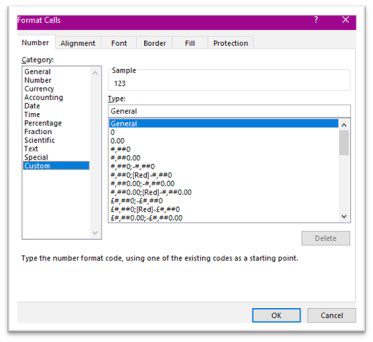
- Select the type of number that you require. E.g. with decimals, or thousands separated by a comma.

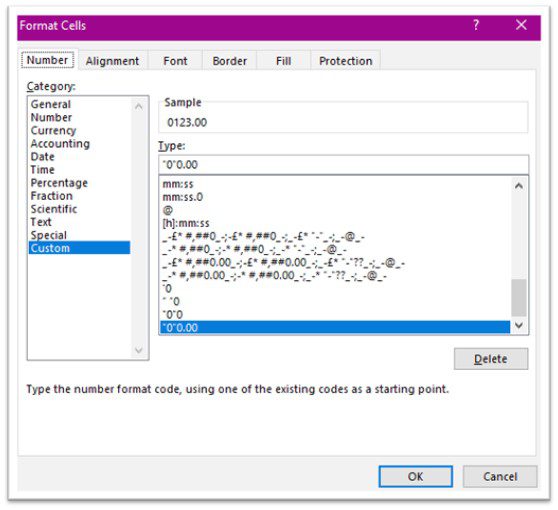
- In the [Type line] type the following before the numbers.
“0”
The result in the Type line should look like this. 
- Select the [OK button].
- In the same cell that you created that format. Type a number with no leading zero.
- Press enter and enjoy!
To use the same format elsewhere
Use the format painter for a whole column or just a few cells whatever you need.
Use the format in other files
- To be able to use that format again in other files select the cell or cells to be formatted.
- Right-click on the area and select [Format cells…]
- Select [Custom] and the last custom format you created will be at the bottom of the list on the right.
If you are formatting already typed numbers in several cells then use the above method. If you are about to I would suggest to format the cells first. Maybe even fill the cells with a light colour to help you see where these cells with result in a leading zero number.
This can be the start of many new formats that will ease your work burden and open up doors to other possibilities. Have fun with Excel!

How to replace curly apostrophes in Excel with straight ones