
 In a previous tip I explained how to display numbers with leading zeros. I also explained in another tip how to format numbers with a leading zero. Here I am going to explain how to display that number that has a leading zero but will automatically be displayed with spaces between certain digits. You designate how many digits between spaces.
We start off here with a number in a cell that has a zero at the start. We want to add spaces because it is a telephone number and they are easier to read with spaces.
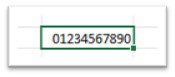
The number in the cell has a leading zero because the format tells it to do so. (explained in earlier tip – formatting numbers.)
Here I wish to display this number with a space between the fourth and fifth number and then the seventh and eighth, so that it will look like this.
0123 456 7890
- Select the cell with that number.
- Right click on the cell.
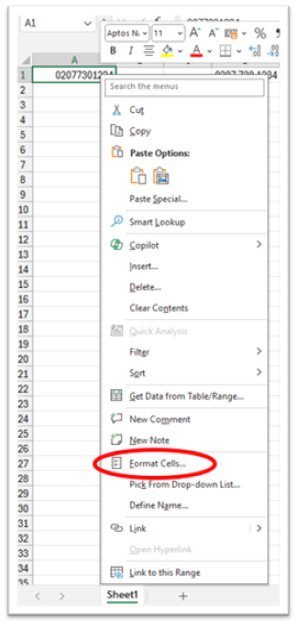
- Select Format cells…
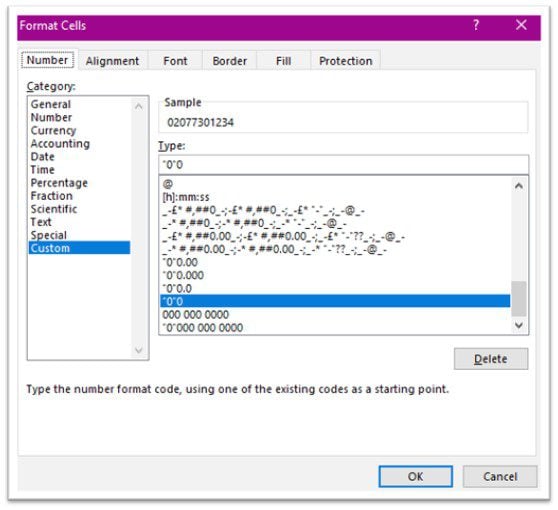
The Number tab should be showing the custom option as this cell has that custom format already.
In the [Type] area, click just after the last zero and type two more followed by a space then three zeros followed by another space then four more zeros. 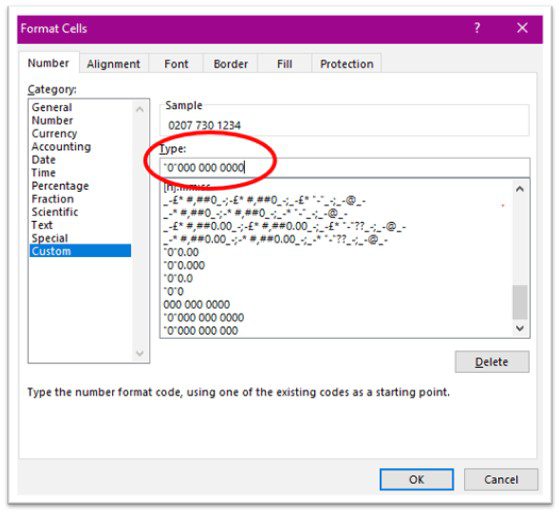
You can see in the sample area of this dialog box that your number is forming the way you want. 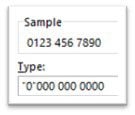
Just play with the spaces to make the number have spaces where you need them.
Don’t forget that now you have made a custom format you can use again and again. You’ll find it at the bottom of the custom list.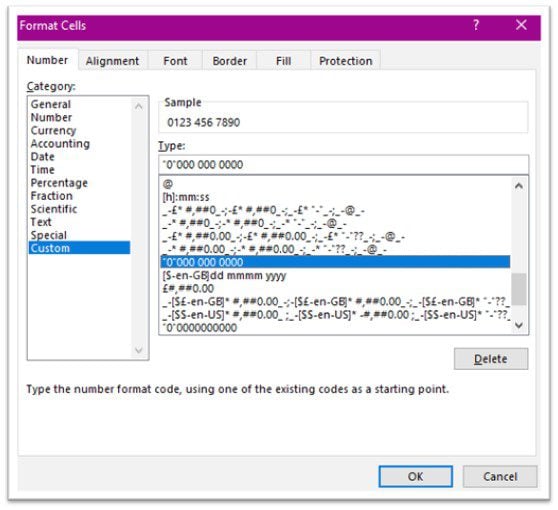
Note: Excel starts the number from the right-hand side. Therefore place the spaces accordingly.
I have applied the above custom format to the yellow area.

I typed the same starting numbers and increased them by 1 each time I went down the column to show the progression and formatting. 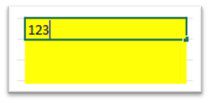
My result is this. 
Have fun with inserting the spaces in different formations.
Find only what you need in your document. Replace with different formatting.